This article goes a little bit technical for non devs. I will share my experience and the lessons I’ve learned through my journey trying to optimize our company’s Shopify store. The field of website optimization is very big, so this article will cover just a portion of it.
Audit and Diagnosis: Where Does Your Shop Stand?
First of all, you should know exactly where your shop stands. There is no better place to find out than Google PageSpeed Insights. Start by running a report and use that as your roadmap to work your way to the top.
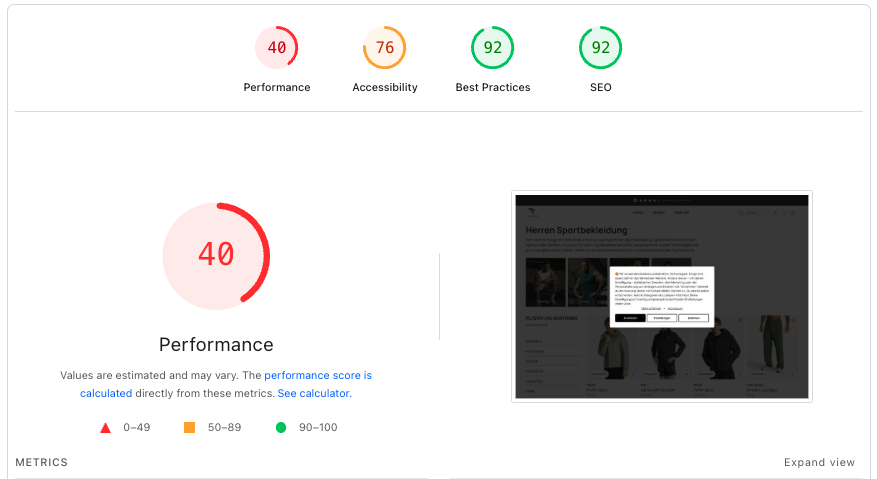
When diagnosing performance issues, Google gives you a broad overview of pretty much everything in your code related to performance. Some of these issues are “low-hanging fruit”—quick wins that are easy to fix—while others are much more difficult and may require making trade-offs in other areas.
Fixing the "Low-Hanging Fruit"
These easy wins are mostly found in the Accessibility, Best Practices, and SEO sections. If you scroll down your report, you will likely find some of these common issues:
-
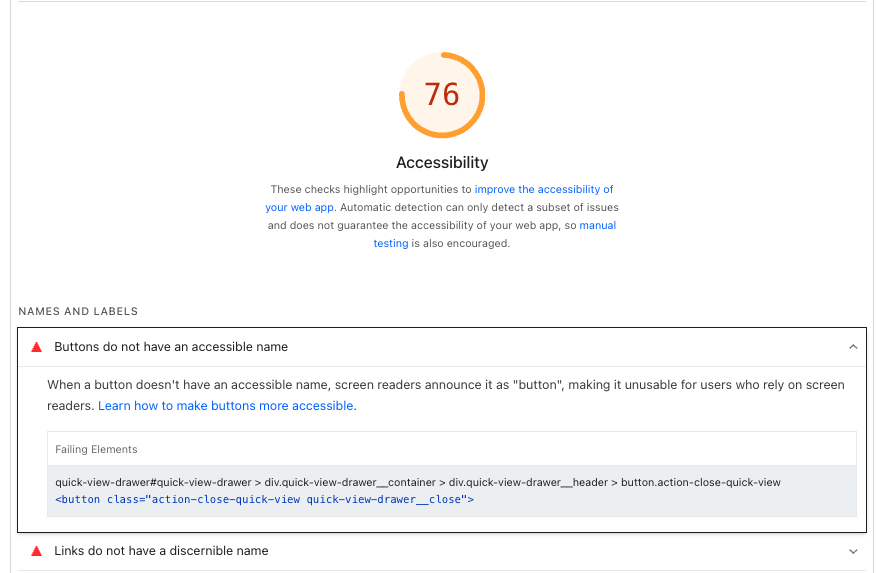
Accessible Name: For users with screen readers for example, it’s the attribute that provides more detail to an HTML element. Most common use case here, you would find buttons and links missing this attribute.
-
Semantic HTML: Some easy fixes could be related to HTML structure. Here for example, a
<ul>tag should always contain<li>tags, which is here missing.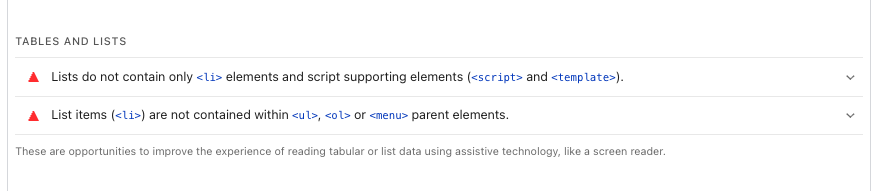
-
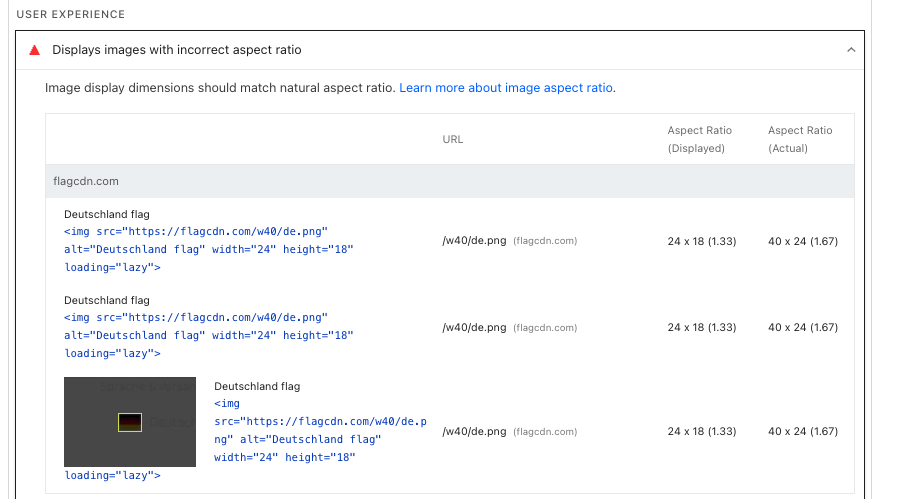
Aspect Ratios: Ensure the aspect ratio of your image files matches the displayed dimensions to prevent layout shifts.
-
Missing Hrefs: An
<a>tag without anhrefattribute cannot be crawled by search engines, as they don’t know where the link is heading.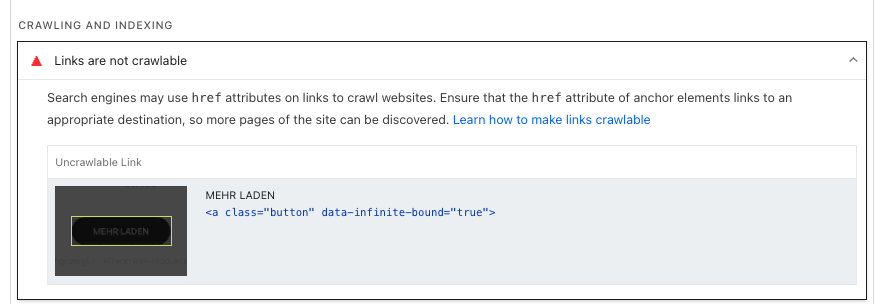
I’m sure you’ll find similar issues, that could be easy fixed. Fixing these small issues doesn’t cost a lot of time, but it significantly improves your store’s overall health score.
The "Big Bounties": Image Optimization
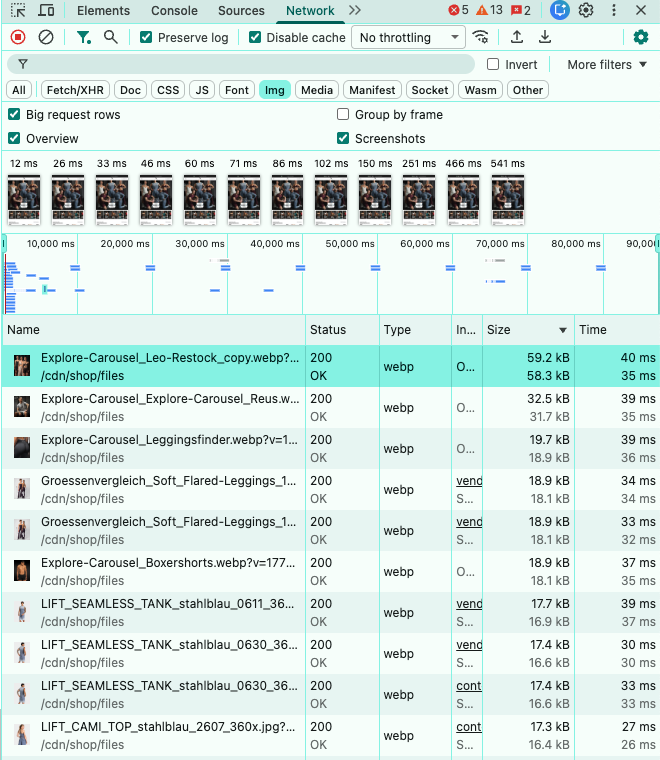
Inside the Performance section is where you will find the biggest opportunities for improvement. These optimizations require more time and precision. I always start with assets like images. Checking the Network Request tab in your browser gives you a great overview of what is slowing you down. Sort down images by sizes, this can help you see things better.
If you spot an image of a big size, you have then many solutions, first see if the image can be compressed, i use here Squoosh to optimize images. Additionally, if possible use the .webp image format, as it provides much better compression.
💡 You can also track down the tag, that is rendering your image, make sure you are serving the right asset to each media query. I like here to use the picture tag for serving images.
<picture>
  <source media="(min-width: 1024px)" srcset="images/hero-desktop.webp">
  <source media="(min-width: 768px)" srcset="images/hero-tablet.webp">
  <img src="images/hero-mobile.jpg" alt="Description of the image" loading="lazy" width="400" height="300">
</picture>
Tip: If an image is critical to the page (above the fold for example), set the fetchpriority attribute to "high". If the image is further down the page, use loading="lazy".
Moving Assets to the CDN for Caching
When developing features in a Shopify theme, it’s common to include JS and CSS code directly inside a Liquid template. However, moving these assets into the Assets folder makes a massive difference in user experience.
Files in the assets folder are served via Shopify’s Content Delivery Network (CDN), which allows them to be cached by the browser. This means returning visitors won’t have to download the same code twice.
Prevent Scripts from Blocking HTML Parsing
Scripts are major players in performance. By default, when a browser encounters a script, it pauses HTML parsing to execute it. This delay impacts your page load time and user experience.
💡 Solution : Use defer or async attributes for non-critical scripts
<script src="{{ 'pickup-availability.js' | asset_url }}" defer></script>

<script src="{{ 'critical-functionality.js' | asset_url }}"></script>
For most tracking or calculation scripts, use defer to run them at the end of parsing, or async to run them in parallel.
Optimize Embedded Content (Iframe Facades)
Iframes (like YouTube videos) can slow down your page considerably because they load heavy resources immediately. A better approach is to load only the thumbnail image first. We only “hook” the actual iframe once the user interacts with the thumbnail.
<div id="video-container" class="video-placeholder">
  <img
    src="[https://img.youtube.com/vi/VIDEO_ID/hqdefault.jpg](https://img.youtube.com/vi/VIDEO_ID/hqdefault.jpg)"
    alt="Video thumbnail"
    loading="lazy"
    class="video-thumbnail"
  />
  <div class="play-button">Play Video</div>
</div>

<script>
  document.getElementById('video-container').addEventListener('click', () => {
    const iframe = document.createElement('iframe');
    iframe.src = "[https://www.youtube-nocookie.com/embed/VIDEO_ID?autoplay=1](https://www.youtube-nocookie.com/embed/VIDEO_ID?autoplay=1)";
    iframe.title = "YouTube video";
    iframe.allow = "accelerometer; autoplay; clipboard-write; encrypted-media; gyroscope; picture-in-picture";
    iframe.allowFullscreen = true;
    const container = document.getElementById('video-container');
    container.innerHTML = "";
    container.appendChild(iframe);
  });
</script>
I have found this technique provides a significant lift to FCP (First Contentful Paint), especially when the video is the first thing the user sees.
Final Thoughts
By implementing these steps, I guarantee your performance score will improve. While it is difficult to achieve a “perfect” score in the Shopify environment due to third-party apps that we cannot control, maintaining a decent score is crucial for SEO and a smooth user experience.